 digest
Getting started
Two steps: install the extension, then add an API key from at least one AI provider. digestVid works with 5 providers; you only need one.
Step 1: install the extension
Download digestVid and load it in Chrome, Edge or Brave. It takes about a minute.
Install the extensionStep 2: get an API key
digestVid runs the AI step with your own key (“bring your own key”): you pay the provider directly for what you use. Not sure which to pick? Google Gemini is the default engine, and Gemini, Groq and Mistral all have a free tier.
Where to paste a key in digestVid
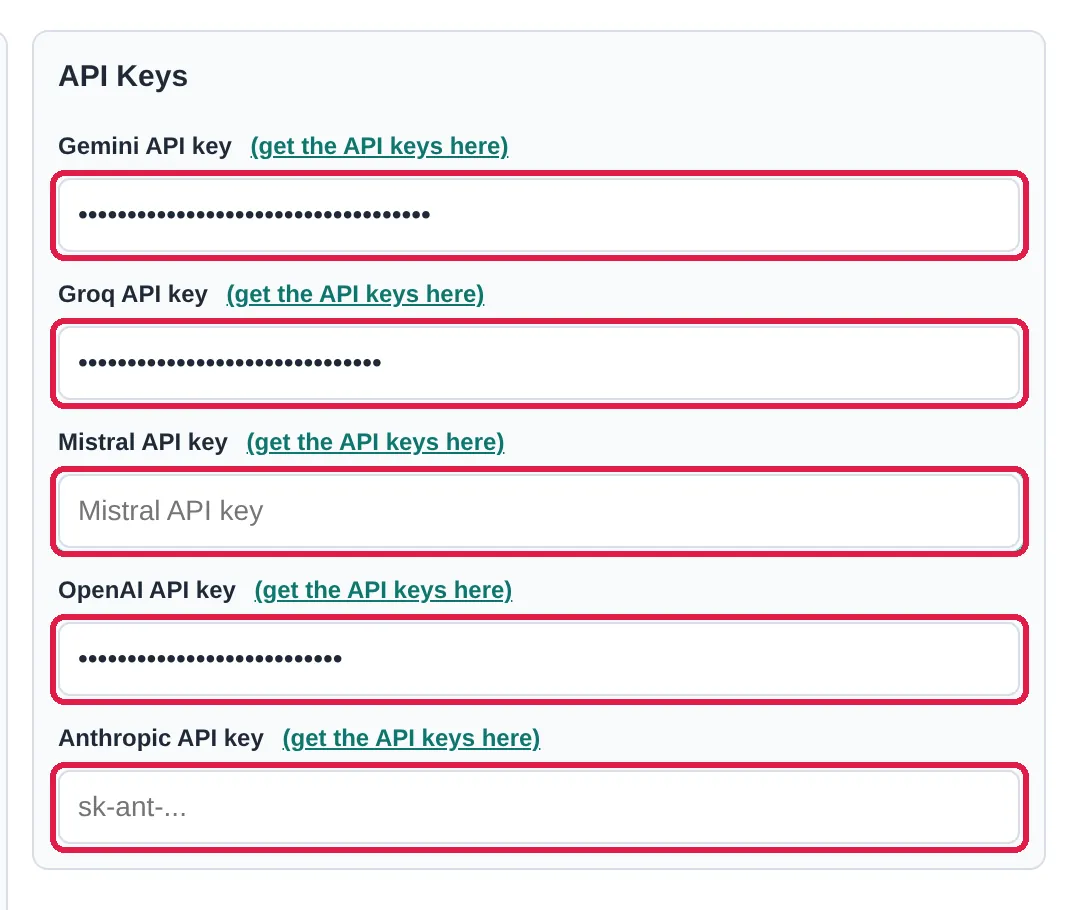
- Click the digestVid icon in the toolbar, then Settings (or right-click the icon → Options).
- Under API Keys, paste the key into that provider's field.
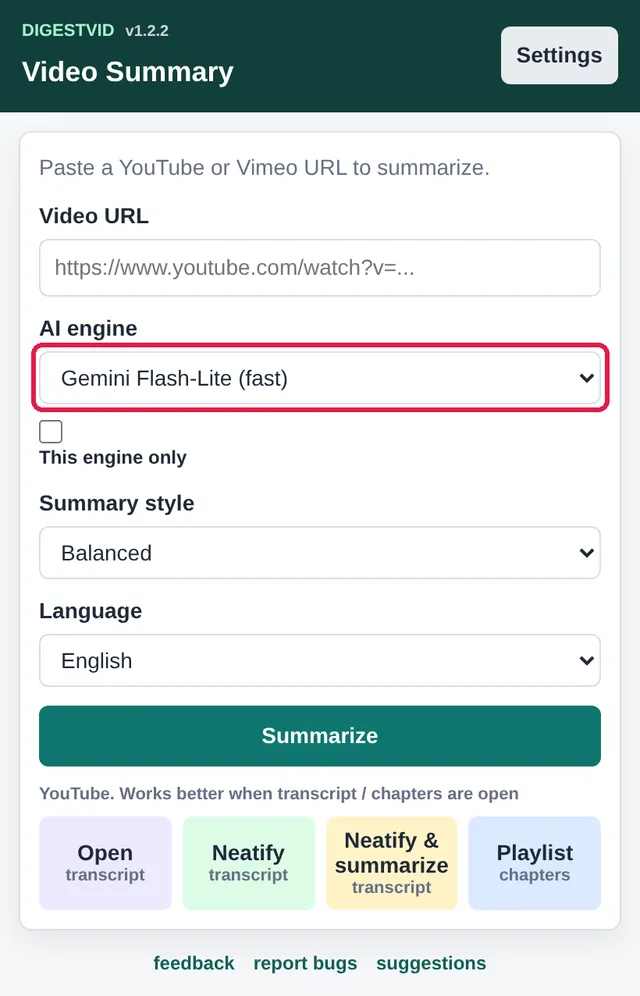
- Click Save settings at the bottom. Engines for every saved key now show up in the popup's AI engine list.
Google Gemini
digestVid engines: Gemini Flash-Lite (fast) Gemini Flash (balanced) Gemini YouTube video
- Sign up
- Google AI Studio (sign in with a Google account)
- Create a key
- aistudio.google.com/apikey
- Cost
- Free tier, no billing needed to start. Google: “New accounts begin on the Free Tier”, up to each model's free rate limits. A paid tier needs a linked billing account. Source
Gemini 3.1 Flash-Lite: free on the free tier (Google may use free-tier data to improve its products); paid tier $0.25 per 1M input and $1.50 per 1M output tokens. Pricing
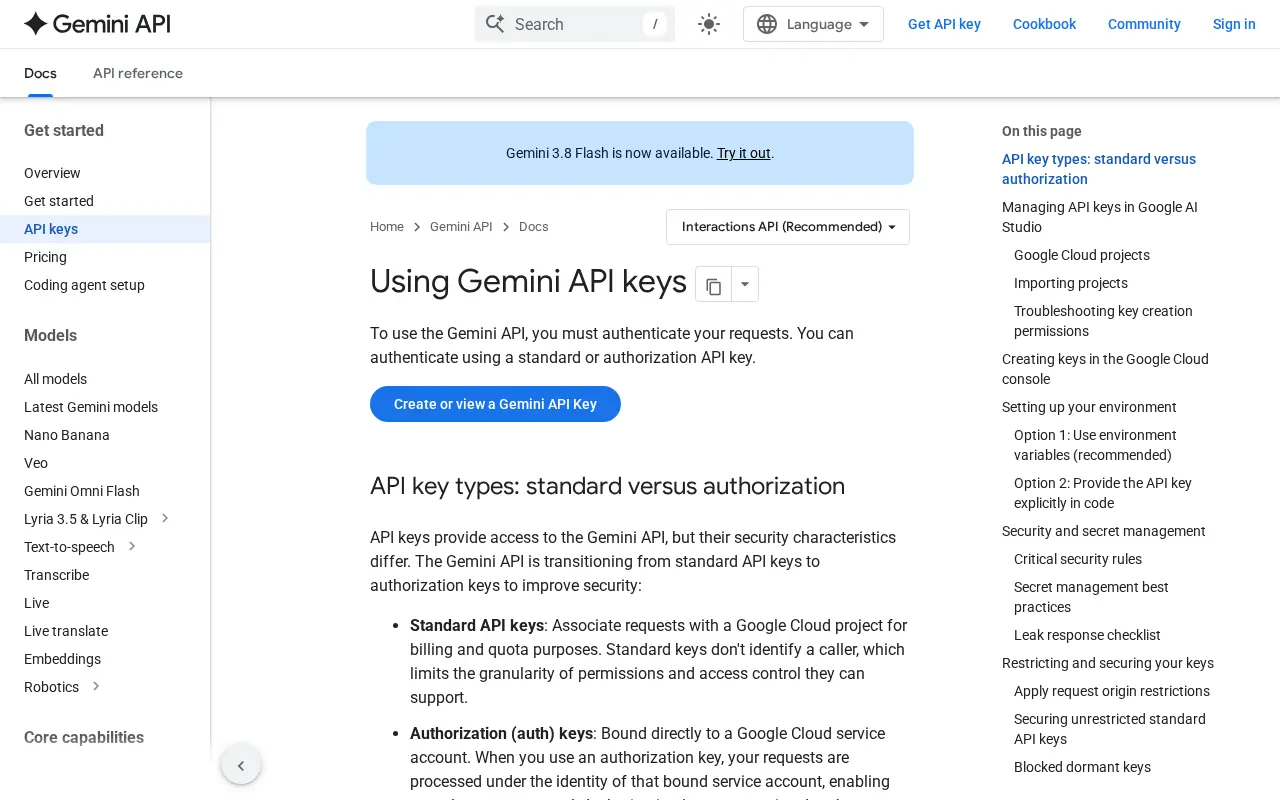
- Sign in to Google AI Studio with your Google account and accept the terms. New users get a project and an API key created automatically.
- Otherwise open API Keys and click Create API key (pick a Google Cloud project if asked).
- Copy the key.
- In digestVid: Settings → API Keys → Gemini API key, paste the key, click Save settings.
Groq
digestVid engines: Groq GPT-OSS 20B (fast)
- Sign up
- console.groq.com
- Create a key
- console.groq.com/keys
- Cost
- Free plan: Groq's console lists a Free plan at $0 (“Great for anyone to get started”). For GPT-OSS 20B the free limits are 30 requests a minute and 1,000 a day. Whether a card is needed is not stated. Source
GPT-OSS 20B on a paid plan: $0.075 per 1M input and $0.30 per 1M output tokens. Pricing
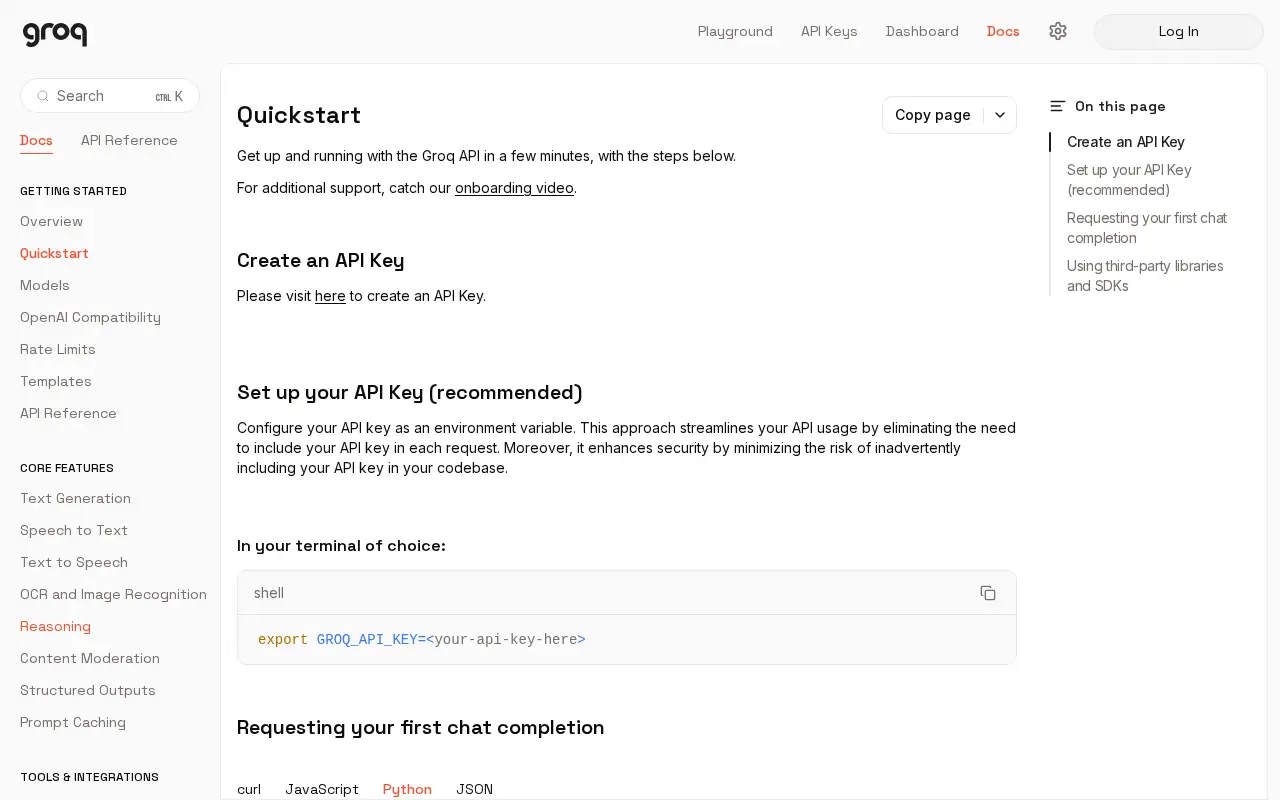
- Sign up or log in at console.groq.com.
- Open API Keys and click Create API Key; give it a name (e.g. digestVid).
- Copy the key right away (it is shown once).
- In digestVid: Settings → API Keys → Groq API key, paste the key, click Save settings.
Mistral
digestVid engines: Mistral Small (free)
- Sign up
- console.mistral.ai (Mistral Studio)
- Create a key
- console.mistral.ai/api-keys
- Cost
- Free mode, no card. Mistral: “API access is enabled by default with no credit card required. Usage and rate limits apply.” Source
Paid usage of Mistral Small 4: $0.15 per 1M input and $0.60 per 1M output tokens. Pricing
- Create a Mistral account and open Mistral Studio.
- Click API Keys in the left sidebar, then Create new key.
- Enter a name (e.g. digestVid) and an expiration date, then click Create new key.
- Copy the key immediately: Mistral shows it only once.
- In digestVid: Settings → API Keys → Mistral API key, paste the key, click Save settings.
OpenAI
digestVid engines: OpenAI mini
- Sign up
- platform.openai.com/signup
- Create a key
- platform.openai.com/api-keys
- Cost
- Plan on prepaid credit. OpenAI's usage tiers start with a limited Free tier (“User must be in an allowed geography”); the model digestVid uses (GPT-4o mini) lists rate limits from the first paid tier, reached at “$5 in total credit purchases”. Source
GPT-4o mini: $0.15 per 1M input and $0.60 per 1M output tokens. Pricing
- Sign up or log in at platform.openai.com.
- Add prepaid credit under Settings → Billing (see Cost).
- Open API keys and click Create new secret key; name it and create it.
- Copy the key (shown once) and keep it safe.
- In digestVid: Settings → API Keys → OpenAI API key, paste the key, click Save settings.
Anthropic (Claude)
digestVid engines: Anthropic Haiku (Claude Haiku 5.5)
- Sign up
- platform.claude.com (Claude Console)
- Create a key
- platform.claude.com/settings/keys
- Cost
- Prepaid credits required, no free tier found. Anthropic: “Claude API and playground usage is billed through prepaid usage credits. Buy credits before you use the API.” Source
Claude Haiku 5.5 (the model digestVid uses since version 1.2.3): from $0.10 per 1M input and $0.50 per 1M output tokens. Pricing - Key looks like
sk-ant-…
- Sign in or create an account at platform.claude.com (console.anthropic.com now opens here).
- Buy credits under Billing (see Cost).
- Open Settings → API keys and click Create key; name it and pick an expiration.
- Copy the key (it starts with
sk-ant-and is shown only once). - In digestVid: Settings → API Keys → Anthropic API key, paste the key, click Save settings.
Your key stays with you
Keys are saved only in the extension's local storage in your browser. When you summarize, the extension sends the key directly to the provider you picked (for example generativelanguage.googleapis.com for Gemini or api.openai.com for OpenAI) and nowhere else. digestVid's servers never receive your keys, and publishing a result to digestvid.com sends only the summary. Treat a key like a password: don't share it, and delete it in the provider's console if it leaks. Setting a monthly spending limit there is a good idea.
Provider sign-up steps, free tiers and prices change; this page reflects each provider's own pages as checked on October 12, 2026. The provider's site is the final word.