digest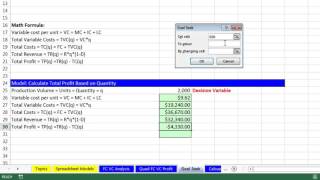
Short Summary
Main recommendation: Use Excel's Goal Seek (Data > What-If Analysis > Goal Seek) to solve for a target result, such as the break-even point where total profit equals zero, by changing a single input cell. Goal Seek only works when the target formula depends, directly or indirectly, on the input cell being changed. The video demonstrates this by finding the break-even quantity and the break-even price for a product.
Key Points
- Goal Seek lets a formula evaluate to a specific value by automatically changing one formula input, instead of manually trying numbers back and forth.
- The video's example target is break-even, where total profit is exactly zero; trying 3,000 units gave a profit well above break-even and 2,100 gave a loss.
- Goal Seek works even when the target formula does not reference the input directly, as long as it is linked indirectly through other formulas (total revenue and total variable cost both depend on quantity).
- Using Goal Seek, the break-even quantity is 2,661 units, so the speaker says demand above 2,661 would justify making the Quad product.
- Price can also be the changing input: holding quantity at 2,000, Goal Seek gives a break-even price of 1,871.
Details Worth Noting
- Concrete instructions:
- Set up the model so the target formula (for example, total profit) depends on the input cell (for example, quantity) directly or through other formulas.
- Open Goal Seek from Data > Data Tools > What-If Analysis > Goal Seek. Keyboard shortcut in Excel 2007 or later: Alt, A, W, G. In Excel 2003 or earlier: Alt, T, G.
- In the Set Cell box, select the formula cell whose result you want to control (total profit).
- In the To Value box, type the target number directly (for break-even, type 0). This box does not accept a cell link.
- In the By Changing Cell box, select the input cell to adjust (quantity or price), then click OK.
- To test a different scenario, press Control+Z to undo the Goal Seek result and restore the original input.
- The video creates a new Goal Seek sheet and copies the earlier model into it, keeping column widths via the Smart Tag option "Keep Source Column Width."
- Goal Seek's result is a single solved value for one input; the speaker says data tables, covered in later videos, extend this approach to multiple scenarios.
- The speaker notes that quantity is not the only variable that can be changed; any input that affects the target formula can be used.
Bottom Line
Goal Seek replaces trial-and-error with a direct solve for the input value that makes a formula hit a chosen target, making it a practical tool for break-even and what-if decisions in Excel.