 digest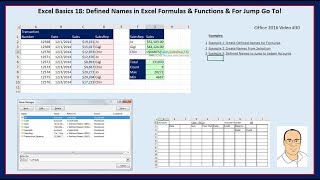
Short Summary
Main recommendation: Use Excel's Defined Names feature to give cells and ranges readable names, then use those names in formulas, the Name Manager, and the Name Box to jump to them. The video also recommends the "Create from Selection" feature (Ctrl+Shift+F3) as the fastest way to name entire columns, and notes that defined names are not dynamic like Excel Tables.
Key Points
- Defined names replace cell references such as B3 with readable labels such as loan_amount, which makes formulas like PMT easier for anyone to read left to right.
- Names are created in the Name Box (left of the formula bar); spaces are not allowed, so an underscore is used instead.
- The Name Manager (Formulas > Defined Names, or Ctrl+F3) lists every name with its value, the range it refers to, and its scope (whole workbook or a single worksheet).
- Defined names are absolute (locked) by default, so they keep pointing at the correct columns when formulas are copied down.
- Defined names are not dynamic: new rows added to a named range do not automatically expand the name, unlike an Excel Table.
- The video uses a "ledger account" example: naming a cell on each sheet (Cash, AR, Sales_400) so the Name Box drop-down can jump straight to it.
Promised list (Excel Basics 18 title lists no numbered set, so no 18-item list applies.)
Details Worth Noting
- Concrete instructions:
- To name a single cell: select the cell, click in the Name Box, type a name using underscores instead of spaces (e.g., loan_amount), and press Enter.
- To name a whole column: highlight the top label row plus the data, go to Formulas > Defined Names > Create from Selection (Ctrl+Shift+F3), make sure only the top row checkbox is selected, and click OK.
- To use names in a formula: type =PMT(, then click or select the defined names (e.g., monthly_rate, total_months, loan_amount) separated by commas.
- To add criteria with SUMIFS: start typing the function, then choose the defined name from the drop-down (marked with the gold tag icon) and press Tab; enter criteria after the comma.
- For single-argument functions such as COUNT, MAX, and MIN, the closing parenthesis can be omitted; pressing Ctrl+Enter inserts it.
- To jump to a ledger account: select a cell on each sheet, type a name in the Name Box (e.g., Cash, AR, Sales_400), then use the Name Box drop-down to navigate.
- To rename a name for consistency, open Name Manager, select the name, edit it, click OK, then Close; formulas update automatically.
- The Alt+= shortcut inserts a SUM formula, which can then reference defined names.
- Create from Selection can mis-check boxes, so the video advises reading the dialog carefully before clicking OK.
- The speaker says Excel Tables are now preferred for most data sets that grow, while defined names remain useful for fixed ranges and for reading older spreadsheets.
Bottom Line
Defined names make formulas self-documenting and navigation faster, especially with Create from Selection, but for growing data sets an Excel Table is the better choice.


