 digest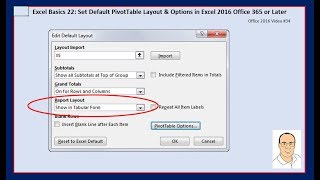
Short Summary
Main recommendation: In Excel 2016 (Office 365 or later), use Data > Edit Default Layout in the Excel Options dialog to set your preferred pivot table layout and options once, so new pivot tables automatically appear in the format you want, such as tabular form, instead of changing them manually every time. The presenter notes this feature is currently only available in Office 365 versions of Excel 2016 and will be available in future versions.
Key Points
- Without this setting, the presenter had to manually switch each pivot table to tabular form (Design > Layout > Report Layout > Show in Tabular Form) across about 20 pivot tables in the class.
- Settings can be taken from a pivot table you have already formatted by clicking Import in the Edit Default Layout dialog, which copies its layout and options as the new defaults.
- The defaults cover Subtotals, Grand Total, Report Layout, Repeat All Items, Insert Blank Rows, and Pivot Table Options.
- The feature is not available in the presenter's computer labs, which is why it was not shown earlier in the course.
Details Worth Noting
- Concrete instructions:
- Create a pivot table, then set the layout and options you want (for example, Report Layout > Show in Tabular Form).
- Optional: right-click the pivot table, open PivotTable Options, and adjust settings such as Autofit Column Widths on Update.
- Go to File > Options > Data.
- Under Default Layout for Pivot Tables, click Edit Default Layout.
- Click Import to copy the settings from the current pivot table into the defaults, or change each setting in the dialog individually (Subtotals, Grand Total, Report Layout, Repeat All Items, Insert Blank Rows, Pivot Table Options).
- Click OK. New pivot tables will use these defaults.
- To test, insert a new pivot table (the presenter used Alt, N, V), drag Region to Rows and Sales to Values, and confirm the new layout appears automatically.
- The presenter uses the default Compact layout as the starting point, which the Import step changes to tabular form.
- Repeat All Item Labels is an example setting; he notes that earlier a Country/Product Category pivot table listed the country only once, but this option could repeat it on every row if desired.
Bottom Line
If you have Office 365 or a later Excel 2016 build, set your preferred pivot table layout once in Edit Default Layout to avoid repeating the same formatting steps on every new pivot table.


