 digest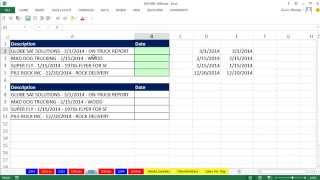
Short Summary
Main recommendation: For a one-time extraction of a date sitting between two dashes in a text description, use Text to Columns rather than a formula, since it is faster and requires no formula writing. The video also shows a formula-based alternative built with SUBSTITUTE, SEARCH, LEFT, REPLACE, and a conversion step, for cases where the result must update automatically.
Key Points
- Recognize the pattern first: the date in the description is surrounded by dashes, so the dash serves as the delimiter for splitting the text.
- Text to Columns (Data > Text to Columns, or Alt, A, E in Excel 2007 or later) can split the text and import the date part directly, without any formulas.
- The formula method is more involved because the text contains two dashes, so a simple SEARCH for the first dash does not isolate the date; the second dash has to be targeted.
- SUBSTITUTE can target the second dash by specifying the instance number, after which a temporary marker character is inserted so its position can be found.
- Functions such as LEFT, REPLACE, FIND, SEARCH, and RIGHT return text, so the result must be converted back to a date (for example, by adding zero), then formatted with Control+1.
Details Worth Noting
- Concrete instructions:
- Text to Columns: highlight the description column, go to Data > Text to Columns (or press Alt, A, E), choose Delimited, click Next, uncheck the default delimiter, select Other, and type a dash. Use the preview to check the split. In the column data format step, skip columns you do not need, set the date column to import as a date in Month Year, Date format, and set the destination to a cell beside the descriptions so they are not overwritten. Click Finish.
- Formula method: in a helper cell, use SUBSTITUTE with the original text cell, the old text "-", the new text "^-" (a caret followed by a dash), and instance number 2, then press Ctrl+Enter and fill down. Next, use SEARCH to find the position of "^" in that result and subtract 2 to get the end position of the date. Use LEFT with that position to strip everything after the date. Then use REPLACE to remove everything from position 1 through the first dash, adding 1 to the SEARCH result for the dash position, with empty new text. Finally, add 0 to convert the text to a date serial number, and apply a date format with Control+1. The presenter notes that SEARCH alone would find the first dash, but he needs the second dash's position, which is why SUBSTITUTE is used with instance number 2.
- The video notes that the formula approach has many possible variations and invites viewers to post alternative versions in the comments.
Bottom Line
Text to Columns is the quickest route for a one-off date extraction, while the five-function formula is the better choice when the extraction must recalculate automatically.


