 digest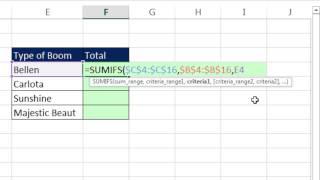
Short Summary
Main recommendation: To add values based on partial text matches in Excel, use SUMIFS with a wildcard criteria, such as ""&E4&"", so that any item containing the target text (e.g., "Bellon") is included. This "contains criteria" approach sums matches whether the text appears at the beginning, middle, or end of the entry.
Key Points
- SUMIFS adds values using one or more conditions; the video uses one condition: a sum range (the values to add) and a criteria range (the product names to search).
- An exact cell reference like E4 would only match identical text, so the criteria must be built with wildcards to match partial text.
- The asterisk (*) is a wildcard that matches zero or more characters, so placing it before and after the search text captures matches anywhere in the cell.
- The ampersand (&) joins the wildcard strings to the cell reference inside the criteria argument.
- Dollar-sign locking (F4) keeps the sum range (C4:C16) and criteria range fixed while the formula is copied down.
Details Worth Noting
- Concrete instructions:
- Enter the formula in the result column, using SUMIFS with the sum range as the amount column (C4:C16) and locked with F4 so it reads $C$4:$C$16.
- Set the criteria range to the product column with F4 applied, so it reads locked across the full product range.
- For the criteria argument, type "" then & then the cell reference (E4) then & then "" (double quotes around each asterisk), resulting in ""&E4&"".
- Close the parentheses, press Control+Enter to enter the formula, then double-click or drag to fill it down through the rest of the rows.
- Press F2 in the last cell to verify that the cell references are correct.
- To check results, select matching cells with Control held down and confirm the total in the status bar.
- The example data lists several Bellon variants (Bellon dancer, plastic Bellon, 12 ply Bellon), showing why partial matching is needed.
- The presenter notes that normally the screen tip highlights the criteria argument, but it didn't do so this time, which he found odd.
- The example uses the workbook from the video's download link (files 1,235 to 1,238) for practice.
Bottom Line
Use SUMIFS with the criteria ""&cell&"" to total every entry containing a given word, regardless of where that word sits in the text.


