 digest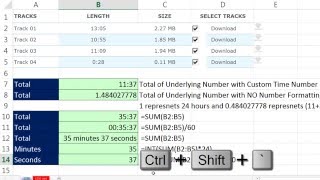
Short Summary
Main recommendation: To add durations correctly in Excel, convert the times to real time values, apply custom number formatting with square brackets ([h]:mm or [h]:mm:ss) so totals can exceed 24 hours, and use the SUM function on those values. The video explains that the downloaded data was stored with an h:mm format that treated minutes as hours, which is why a simple Alt = sum returned an incorrect total of 11 minutes 37 seconds (displayed as 11:37). It then shows how to extract separate minute and second totals with formulas.
Key Points
- The source data was copied from the internet with a custom
h:mmformat, so the first number (for example, 13) was read as hours and the second (5) as minutes. - Excel stores a typed time as a fraction of one 24-hour day; for example, 8:00 AM is stored as 0.3333, since 8 is divided by 24.
- Standard time formatting cannot display hours past 24, so 28:05 appears as 4:05 unless square brackets are used.
- Dividing an hour value by 60 converts it to minutes, and dividing minutes by 60 converts them to seconds, because a time value is a proportion of a day.
- Once totals are stored as numbers, the INT and MOD functions can separate whole hours or minutes from the remainder.
Details Worth Noting
- Concrete instructions:
- Select the source times and press Ctrl+1 to check the number format; if it is
h:mm, the values are being misread as hours and minutes. - To check the stored value of any cell, select it and press Ctrl+Shift+~ (tilde) after applying the General format, which reveals the underlying number.
- Enter the total with Alt+= (SUM) on the time values, then press Ctrl+1, choose Custom, and enter
[h]:mmso hours past 24 are displayed. Use[h]:mm:ssif seconds should also be shown. - To convert a total into minutes, divide the time value by 60 as shown in the video; to convert minutes into seconds, divide by 60 again.
- To get whole hours from a total, multiply the time by 24 and wrap the result in INT (for example,
=INT(cell*24), giving 35). - To get the remaining minutes, multiply the time by 24, take the remainder with MOD(value, 1), then multiply that remainder by 60 (giving 37).
- A custom format using quoted text (for example
hh" hours "mm" minutes") can display labels, but the video notes that square brackets are needed when the total exceeds 24 hours.
- Select the source times and press Ctrl+1 to check the number format; if it is
- The example times are 13:05 plus 10:55 (the original music lengths), and separately a demonstration of 13:05 plus a 15-minute entry, which should total 28:05 but displays as 4:05 under standard formatting.
- The video makes clear that the results depend on whether the speaker's time values represent durations or clock times, which affects how they are entered and summed.
Bottom Line
Downloaded durations must be treated as true Excel time values and formatted with square brackets to avoid misleading totals, and the video demonstrates several ways to display or extract the hours, minutes, and seconds.


