digest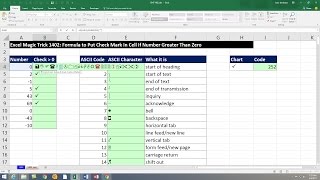
Short Summary
Main recommendation: To show a check mark in a cell only when a number is greater than zero, use an IF formula that returns CHAR(252) when true and an empty string when false, then format the cell with the Wingdings font. The video shows how to find the character code for the check mark by generating ASCII codes 1 to 255 and using the CODE function on an inserted symbol.
Key Points
- The check mark is found in the Wingdings font; inserting it via Insert > Symbol (or Alt+I) and then checking the formula bar reveals the underlying character.
- To identify the code, the video builds a list of numbers 1 to 255 and uses the CHAR function to display each ASCII character, then CODE to confirm the number for the check mark.
- The check mark's code is 252, so CHAR(252) returns it when the font is set to Wingdings.
- The final formula is an IF statement: a logical test (relative cell greater than zero), a value-if-true of CHAR(252), and a value-if-false of "" (an empty text string that displays nothing).
Details Worth Noting
- Concrete instructions:
- Insert a check mark symbol using Insert > Symbol, or press Alt+I, and select Wingdings to find it. Note the underlying character shown in the formula bar.
- Enter 1 in a cell, then fill down to 255 by right-click dragging the fill handle down, dragging back up, and choosing Series. Set the step value to 1 and stop at 255.
- In an adjacent cell, enter =CHAR(number) referencing the code numbers to display each character, and use =CODE(cell) to confirm which code matches the check mark (252).
- In the target column, enter the formula =IF(A1>0,CHAR(252),"") (using the relevant relative cell reference), fill it down, then select the column and set the font to Wingdings so the code displays as a check mark.
- Blank cells in the ASCII list, such as code 10, correspond to non-printing characters like a line feed (Alt+Enter, a line break in a cell).
- The IF formula uses a double quote pair ("") as the value if false; this is a zero-length text string that displays nothing.
- The video notes that the formula looks much harder to read when written in Wingdings font, which is why the formula itself is typed in the normal font and only the result column is formatted.
Bottom Line
A check mark can be produced conditionally by pairing an IF formula with a Wingdings-formatted CHAR(252) result, and the ASCII list is a practical tool for finding the code of any symbol.