digest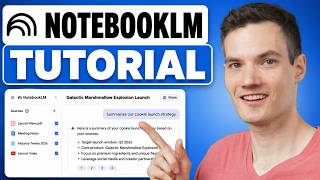
Short Summary
Main recommendation: Use Google NotebookLM as an AI research assistant by building a notebook from your own sources (PDFs, notes, Drive files, websites, YouTube videos) and then querying, mapping, and audio-summarizing that material. The tutorial shows the workflow from creating a notebook to sharing it with others.
Key Points
- A NotebookLM "notebook" is a workspace for one project or topic, such as meeting notes, research, studying, or a product launch.
- Sources can be added as uploaded PDFs, Google Drive files, websites, YouTube videos, or results from a web search that NotebookLM runs for you.
- Chat answers cite their sources; clicking a citation jumps to the exact passage it came from.
- Responses and custom notes can be saved, and notes can be converted into new sources.
- The Studio panel generates mind maps and audio overviews (AI podcast-style discussions) from selected sources, and can also produce video overviews, reports, and flashcards.
Details Worth Noting
- Concrete instructions:
- Go to the NotebookLM website and sign in with a Google account.
- Click "create new" in the top right to open a notebook, then name it at the top.
- Click "add sources" to upload a PDF, add a Drive file, paste a website, or add a YouTube video. For web search, enter a query (the example was "dessert trends 2026"), click "view" to preview results, select the relevant ones, and click "import."
- Use the autotagging icon under Sources to group sources automatically.
- Ask questions in the chat panel in plain language; click citation numbers to verify the source text.
- To save an answer, click the save-as-note option at the bottom of the response. To add your own note, use the note button, give it a title, and optionally convert it into a source.
- For a mind map or audio overview, first deselect all sources at the top of the Studio, then check only the sources you want to use before clicking the generation option.
- For audio overviews, the settings gear allows changing format, language, length, and additional focus areas; the defaults were used in the demo.
- To share, click "share" in the top right, add specific people, and set each as viewer or editor, or remove access. The default sharing is restricted to explicitly added people.
- The presenter's cautionary note: verify important information and outputs, especially for work or research.
- The audio overview in the demo produced a humorous two-host discussion of the launch plan, illustrating the output style.
- The mind map is zoomable and clickable, useful for seeing how topics connect across many sources.
- The demo used a fictional product launch (a marshmallow-explosion cookie), so the example content is illustrative rather than a factual recommendation.
Bottom Line
NotebookLM is most useful when you load your own documents and videos first, then rely on its citations to check answers, since the tool's outputs still need human verification.