 digest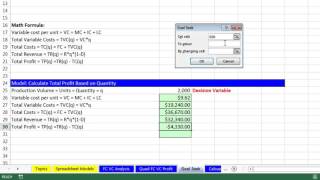
Welcome to Highline BI248 class. If you want to download this workbook file, this is BI248 Chapter 7 Start. You can click on the link below the video. We've already completed this sheet right here: Quad Fixed Cost, Variable Cost, and Profit. We added this sheet and created this whole model in the last video, video number 2. In this video, we want to see how to use Goal Seek.
I want to insert a new sheet, so I'll click on Calculate Revenue and use the keyboard shortcut Shift+F11, then double-click and call this sheet Goal Seek, and press Enter. Next, I'll come over to the earlier sheet, highlight our assumption area and our model area, and press Control+C. Then I'll go to Goal Seek and press Control+V. Immediately, I want to click the Smart Tag and select Keep Source Column Width. There are my column widths. I'll press Control+Enter.
Here is what we want to do. This is our total profit, and we are allowed to change these inputs. I want to figure out the break-even point. I'll type 3,000 into the quantity input, and I get a profit much larger than break-even, because break-even is zero. So I'll try 2,100, and that's negative. I could keep iterating back and forth until I zero in on a units or quantity figure that gives me exactly zero. I'll press Control+Z, then Control+Z again.
Instead, I'm going to use an awesome feature called Goal Seek. Goal Seek allows us to tell a formula to evaluate to a particular answer by changing a formula input. To use Goal Seek, the formula has to depend on that formula input. Notice that this total profit formula does not directly use the quantity input. It uses total revenue and total cost. But when I press F2, you can see that this formula is using the formula inputs from above and our decision variable. Total revenue uses the decision variable, and total variable cost from above uses it as well. So all of these formulas influence this last formula. Since we use this decision variable in several places, as long as you have a cell that is connected either directly or indirectly to a formula input, you can use Goal Seek.
Ready? We go up to Data, then Data Tools, then What-If Analysis, and then Goal Seek. The keyboard shortcut in Excel 2007 or later is Alt, A, W, G. That is three letters. If you know earlier Excel versions, which means 2003 or earlier, the shortcut is Alt, T, G. I like Alt, T, G because it matches the old Tools menu: Tools, Goal Seek.
For Set Cell, that has to be your formula. For To Value, notice that this does not have a collapse button, so we cannot link it to a cell. The value you want the formula to evaluate to has to be typed in. We are talking about break-even here, which is when profit is exactly zero. Tab to By Changing Cell, which is the formula input. When I click OK, it gives me 2,661. Click OK. So if I believe demand is greater than 2,661, I would consider making the Quad product.
Notice that here we changed quantity. I'll change it back by pressing Control+Z to return to 2,000. Quantity is not the only variable we can change. What if we didn't think we could get demand of 2,661? Another potential variable we could change is price. If we believed it would be acceptable to raise the price and still have 2,000 sales, watch this. We can use Goal Seek to change that formula input. Alt, T, G. The cell is automatically selected, so Excel thinks I want to change that formula. Tab to To Value, which is the value I want this formula to evaluate to: zero. Tab to By Changing Cell, which is a formula input. Any one of these could be acceptable. I'll click that one and click OK. The result is 1,871. If that price is acceptable, we could use it, or a higher price, to get above our break-even point.
Now I'll press Control+Z to return to the original 1,650 price and the original 2,000 quantity. Goal Seek is incredibly useful as long as you have a formula with formula inputs. You specify what the formula should evaluate to, and Goal Seek changes the formula input to get there. In two videos ahead, we will cover data tables, which take Goal Seek to another level. In our next video, I want to do a brief video on the formula for the break-even number of units. We'll see you in the next video.