digest
Short Summary
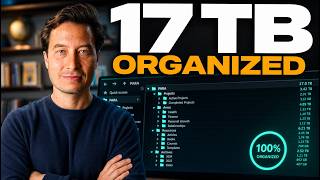
Main recommendation: Organize computer files in a "tree structure" of nested folders, starting from a single root folder that is synced to a cloud app (the speaker recommends Google One/Google Drive), with top-level folders organized as "life buckets" and sub-folders organized by category or, where needed, by date. The video also argues for descriptive-but-not-overly-complex file names, a separate cloud backup, and shortcuts such as Quick Access (Windows) or Favorites (macOS) for frequently used items.
Key Points
- Computer files need deliberate organization from the start because they are easy to accumulate in large numbers and, unlike paper files, can pile up on the desktop without being noticed.
- The speaker illustrates the tree structure with the analogy of a trunk, branches, and leaves, and compares it to the circulatory system and road networks as efficient ways to move resources.
- Every file should live inside a specific, meaningful folder: nothing on the desktop and nothing loose in general folders such as Documents or Downloads.
- Cloud sync (Google One/Google Drive, Dropbox, OneDrive, iCloud Drive) keeps files current across devices and provides protection against hardware failure, but not against malicious deletion or accidental changes.
- Shared or professional directories usually need agreed-upon conventions, whereas a personal system can be shaped around how your own brain organizes information.
Details Worth Noting
- Concrete instructions:
- Create a root folder (the speaker's is "Google Drive") and place main "life bucket" folders inside it, such as College, College Info Geek, Learning, and My Life (personal files such as taxes and apartment files).
- Organize subfolders by category. Example: inside College Info Geek, use Business, Content, Courses, Projects, Speaking, and Tools; inside Content, use Articles, Email List, Graphics, Podcasts, and Videos.
- For large sets of similar items, add a date layer. Example: college classes sorted into Freshman, Sophomore, Junior, and Senior folders, then one folder per class inside each year.
- Create project-specific subfolders only when a project has many files; keep single handouts in the class folder.
- Name files specifically enough to identify them at a glance in their folder context (for example, not just "homework.docx" or "paper.docx"), but avoid overly complex naming with dates and extra context.
- Set up a cloud sync app and use it as the root of the file tree.
- Back up beyond cloud sync. The speaker uses Backblaze (about $5/month or $60/year, unlimited data across connected drives, excluding network-attached storage) and mentions CrashPlan. Alternative: buy a small external drive, copy data to it once a month, store it unplugged, and remember to repeat the backup monthly.
- Pin frequently used folders to Quick Access (Windows, in the sidebar) or Favorites (macOS, in Finder) rather than clicking through many levels.
- The speaker recommends Google One for most people because it gives 15 GB free and, for extra storage, 100 GB for about $2/month, compared with Dropbox's 2 TB plan at about $10/month. He says most non-creators will rarely need more than 100 GB.
- Cloud sync may let you restore deleted files from the trash, but the speaker notes a typical limit of about 30 days, so it is not a full backup.
- The video mentions the Datacurator file tree project on GitHub, which splits its top level by media type (audio, documents, literature, video), as an alternative structure.
Bottom Line
A clean, deliberate folder hierarchy plus a cloud sync app and a separate backup is the practical core of keeping computer files findable and protected over time.